Two-factor authentication, often shortened to 2FA, asks for a second proof of identity on top of your password, such as a code from an app or a tap on a security key. Even if someone steals your password, they still cannot get in. Here is how the main types compare and how to switch it on.
How two-factor authentication works
Security people group proof of identity into three kinds: something you know, something you have, and something you are. A password is something you know. A phone, a key, or a fingerprint covers the other two.
Two-factor authentication simply requires two of those kinds at once. A criminal who has bought your leaked password from a data dump still needs your phone or your key, which is a far taller order.
The main types, compared
Not every second step is equal. Some are more convenient, and some resist tricks better.
| Method | How it works | Strength |
|---|---|---|
| Text message code | A code is sent to your phone number | Better than nothing, but can be intercepted or phished |
| Authenticator app | An app generates a code that changes every 30 seconds or so | Strong and works offline |
| Push approval | You tap approve on a notification | Convenient, but beware of accidental taps |
| Hardware security key | You plug in or tap a physical key | Among the strongest, and resists fake login pages |
| Passkey | Your device and biometrics replace the password | Strong, and phishing-resistant by design |
Which accounts to protect first
You do not need to do everything today. Begin with the accounts that would hurt most to lose, because they often unlock the rest.
- Your main email account, since password resets for other services land there.
- Banking, payment, and shopping accounts.
- Cloud storage and your phone or computer account.
- Social media and messaging apps.
- Your password manager.
How to set up two-factor authentication
The steps are broadly the same on almost every service. Open the account settings, look under Security or Privacy, and find the option named two-step verification, 2FA, or similar.
Choose an authenticator app if you can, scan the QR code the site shows, and enter the six-digit code to confirm it works. The service will then offer a set of backup codes. Save these somewhere safe, because they are your way back in if you lose your phone.
Do not skip the backup step
The most common 2FA disaster is a lost or replaced phone. Before you upgrade a device, move your authenticator app across first, or note down your backup codes. Some authenticator apps can sync encrypted backups, which is worth switching on.
Myths that put people off
Myth: it is too much hassle
Many services only ask for the second step when you sign in from a new device. Day to day, the extra effort is a few seconds.
Myth: hackers can always get around it
Some attacks do try to trick people into handing over codes, which is why a phishing-aware mindset matters. Read our guide to spotting phishing emails, and never share a code with anyone who contacts you first, however official they sound.
Myth: text codes are pointless
They are weaker than the alternatives, but still far safer than a password alone. If text codes are your only option, use them.
What to do when a code does not arrive
Text messages can be delayed, and authenticator codes depend on your phone’s clock being correct. If a code is rejected, check that your phone’s date and time are set automatically, wait for a fresh code, and try again. If you are still locked out, use your backup codes or the service’s official recovery page.
Key takeaways
- Two-factor authentication combines a password with a second proof such as an app code or security key.
- Authenticator apps, security keys, and passkeys are stronger than text messages.
- Protect your email first, then money and storage accounts.
- Store backup codes safely and never read a code aloud to a caller.
More practical explainers live in our technology archive, including how to back up your phone and photos before any device swap.
This article is general information, not security or legal advice. For your specific situation, consult a qualified professional.
Frequently asked questions
Is two-factor authentication the same as two-step verification?
In everyday use, yes. Both ask for a second check after your password, although the terms are sometimes used with slightly different technical meanings.
What happens if I lose my phone?
Use your saved backup codes or a recovery method you set up earlier to sign in, then register the new phone. This is why storing those codes matters.
Do I need it on every account?
No, but it is wise on anything involving email, money, or personal data. Add it where it is offered, starting with the most important accounts.
Can a passkey replace my password?
Where a site supports passkeys, yes. They use your device and a biometric or PIN instead of a typed password.
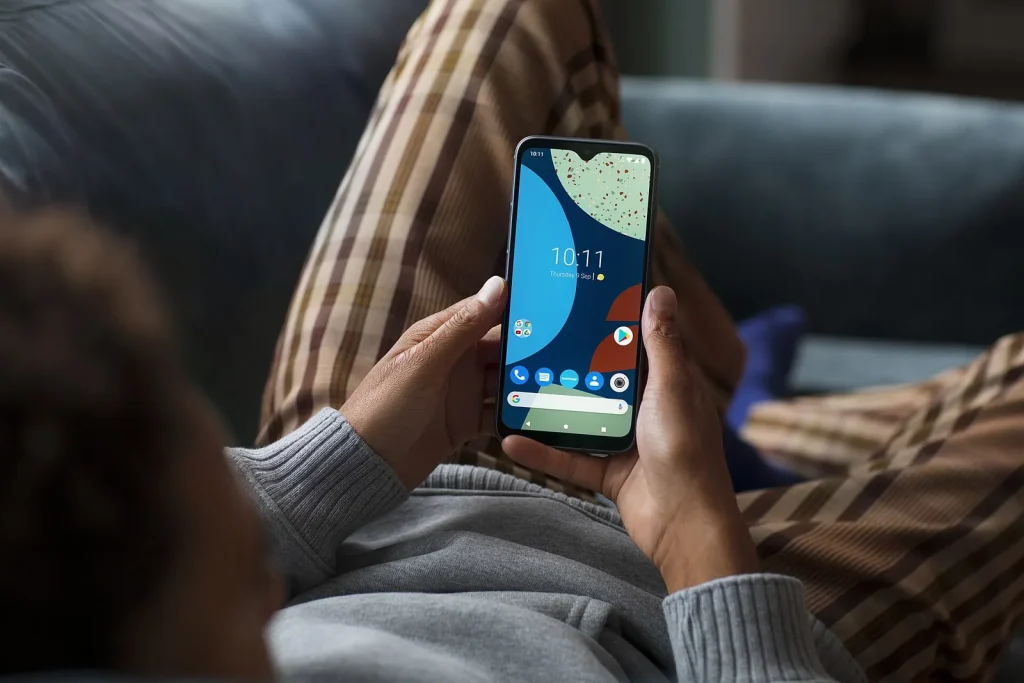
Photo: Fairphone 02 grey phone in hand on couch Kera 0091 C1 RGB by Fairphone, CC BY-SA 2.0, via Wikimedia Commons