To choose a laptop, start with what you will do on it, then match memory, storage, screen, and battery to that list. Most people overspend on power they never use and underspend on the screen and keyboard they touch every day. This checklist keeps you focused on what matters.
Before you choose a laptop, define your use
Write down your three most common tasks before you look at a single product page. Email, browsing, video calls, and documents need far less muscle than video editing, 3D design, or demanding games.
Also note where you will use it. A laptop that lives on a desk can be big and heavy. One that rides in a backpack every day should be light and have a battery that lasts a full day.
The specs that matter, in plain language
| Part | What it does | Rule of thumb |
|---|---|---|
| Processor | The brain of the machine | Mid-range is plenty for everyday work |
| Memory (RAM) | Short-term workspace for open apps | 8 GB is a workable minimum; 16 GB gives breathing room |
| Storage | Where files and apps live | Choose a solid-state drive; 256 GB suits light use, 512 GB or more is more comfortable |
| Graphics | Draws images and video | Integrated is fine unless you game or edit video |
| Battery | Powers it away from a socket | Check independent reviews, not just claims |
The parts you touch every day
Specs fade into the background. The screen, keyboard, and trackpad do not.
- Screen: look for a sharp display with decent brightness, and a matte or low-glare finish if you work near windows.
- Keyboard: try it in a shop if possible. Comfortable key travel makes long typing sessions far easier.
- Webcam and speakers: worth checking if you take many video calls.
- Weight and size: a 13 or 14 inch screen is easy to carry, while 15 to 16 inches gives more room to work.
Operating system and ecosystem
Windows, macOS, ChromeOS, and Linux each suit different people. Consider the software you need, since a few programs run on only one system. Also think about your phone and other devices, because some combinations share files and messages more smoothly.
Whichever you pick, set up protection early. A password manager and automatic updates are a strong start, and our backup guide shows how to keep your files safe.
Ports, upgrades, and longevity
Count the ports you need: USB-A for older accessories, USB-C for charging and displays, an HDMI output if you present, and a headphone jack. Adapters work, but they are one more thing to lose.
Find out whether memory and storage can be upgraded later. On many thin laptops they are fixed to the board, so buy slightly more than you think you need. Look at the warranty, repair options, and how long the maker promises software updates.
A simple buying process
- List your main tasks and where you will use the laptop.
- Set a budget with a little flexibility for a better screen or more memory.
- Shortlist three models and read several independent reviews.
- Compare weight, battery, ports, and warranty side by side.
- Check the return policy, then test the laptop in the first few days.
Once you own it, our tips for making a battery last longer, written for phones but useful here too, are in the guide to extending battery life.
Common mistakes to avoid
- Paying for a powerful processor when your tasks are light.
- Ignoring the keyboard and screen until the laptop is on your desk.
- Choosing very little storage and running out within months.
- Skipping the return policy and warranty details.
Finally, give yourself a chance to try before you commit. Visit a shop to type on a few keyboards and compare screens in person, even if you eventually buy elsewhere. Ask about the return window and keep the packaging for the first couple of weeks. A short trial period lets you spot problems early, such as a noisy fan or a screen that is too dim for your room.
Key takeaways
- Define your tasks first, then pick specs to match.
- Prioritise screen, keyboard, battery, and a solid-state drive.
- 8 GB of memory is a minimum, and 16 GB is safer for heavier multitasking.
- Check ports, upgradeability, and warranty before buying.
Browse more guides in the technology archive.
This article is general information, not financial advice. For major purchasing decisions, consult a qualified professional if needed.
Frequently asked questions
How much memory do I need?
For browsing, documents, and calls, 8 GB works. If you keep many tabs and apps open or do creative work, 16 GB is more comfortable.
Is a touchscreen worth it?
It depends on your habits. It suits note-taking and tablet-style use, but adds weight and can reduce battery life.
Should I buy the newest model?
Not necessarily. Last generation’s models are often almost as capable, and the savings can go toward better storage or screen quality.
How long should a laptop last?
With care, many laptops serve well for several years. Software support and battery health are usually the limiting factors.
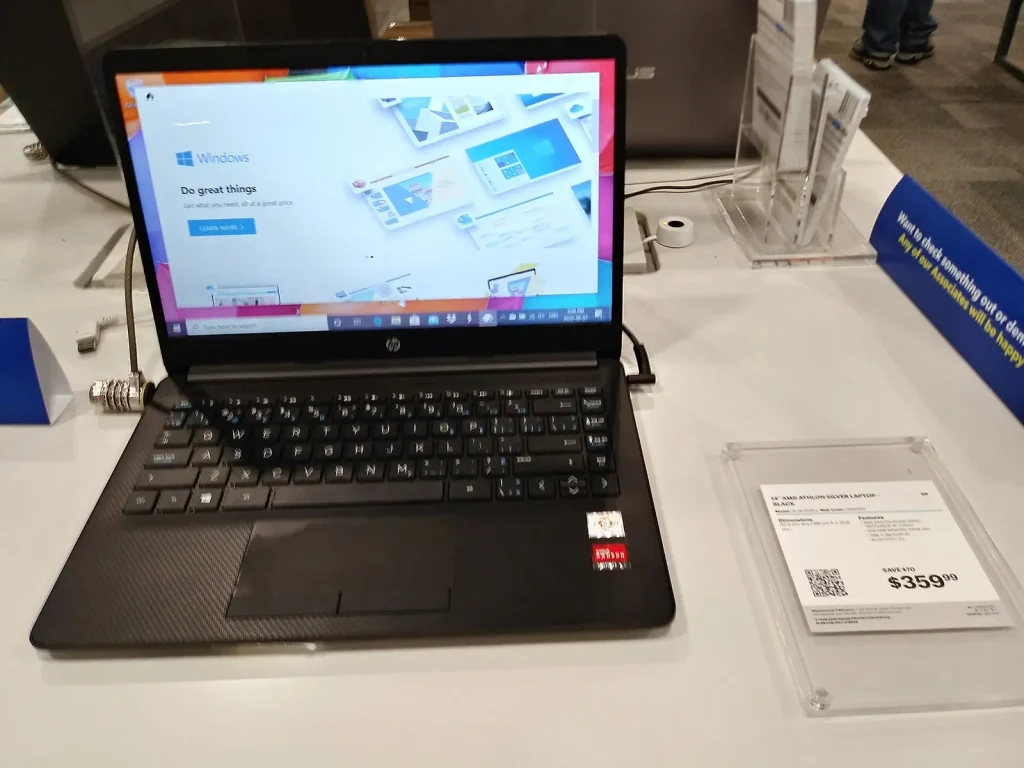
Photo: HP Laptop at Best Buy Edmonton 2020 by Rowanswiki, CC0, via Wikimedia Commons